
Solutions for when protogens have eaten all your RAM.
So, Furality Ultra happened. And like always with Furality, we end up thinking about optimization a lot. During the lead up we both optimized our avatars and gave some advice on doing so in some of the Discords we're in... but of course, Discord is not a replacement for documentation. So, for when things happen next year, we wanted to have somewhere to link out to for some ideas.
disclaimers
Before taking any advice in this article, make sure you have full backups of your project and/or it being in version control. We suggest duplicating your avatar within your Unity scene - but be aware that some changes such as material or texture changes will affect all copies.
We must stress that we are not experts and if a game industry veteran and/or VRChat employee tells you something different, do that.
This article is more about what you can do, rather than how to do it; a jumping off point for more research.
This article is primarily going to stick to what can be done within Unity, with a few Blender suggestions here and there - we still only know enough Blender to be dangerous. Some level of familiarity with Unity operations is assumed, along with adding VRChat Package Manager (VPM) repositories and packages to projects - whether by VRChat Creator Companion, vpm, vrc-get, or ALCOM. It's probably worth giving VRChat's performance ranking system docs a read too.
Do not feel like you have to do everything at once. Start with the easy things first. (We're going back and forth when writing this, too).
The vast majority of this article pulls from optimization panels at various Furality events (bare in mind that these videos range from 2022-2024 and advice may have changed):
- Furality Aqua - How to Quest-ify Your Assets
- Furality Sylva - Where'd My Frames Go? Avatar Performance in VRChat
- Furality Umbra - Making Better VRC Avatars: Optimize!
- Furality Umbra - Optimization - What You Can't See Does Matter!
It also pulls from at least some of Kokou's shorts, though we couldn't tell you which ones individually!
do you still need to optimize?
VRChat has added a lot of systems over the years that can help with performance problems - in particular, the avatar culling system, impostors, the ability to force Very Poor avatars to be shown as fallbacks.
But these don't fully solve the problem. Impostors reduce the load, but they do not eliminate it; there is still the CPU overhead of processing complex animations. There are new performance limited instances that mean you won't be shown to anyone if your avatar is Very Poor. Sometimes you want to show all avatars in a place for a group photo without everything melting.
Computer components aren't getting any cheaper anytime soon. Everyone might be excited for the Steam Frame if it remains at an affordable price, but its capabilities as a standalone device running the Windows version of VRChat (versus the Android version) will be heavily limited. (And the Android version is much, much stricter about optimization)
You should do what you can to be kinder to the people and critters around you. It might not matter too much if you stick to smaller instances with a few friends, but in time you'll probably want to visit larger ones.
With all that said, some problems are worse than others - for example, if you're at 75000 triangles (and so immediately going to Very Poor because of VRChat's 70000 cap) but everything else is Excellent, you're probably fine.
This answer may change in future - VRChat have said they plan to introduce some level of automatic optimization into the VRC SDK at some point. However, they have also said that they are not trying to compete with existing tools and that their focus is on not breaking stuff, so it might not do that much.
for base and asset creators
Base and asset creators have an additional responsibility of care, because those bases will often be uploaded by people that just want to do a basic retexture to have something that looks like them - who will not be seeking out articles like this one.
The worst example of this I've seen was a base that came with a tailbag. On that tailbag was a button with a ridiculously large animated GIF, basically pushing the avatar into Very Poor territory by itself. I knew to delete that, but I wonder how many uploads of that base are out there with that still intact.
platform constraints
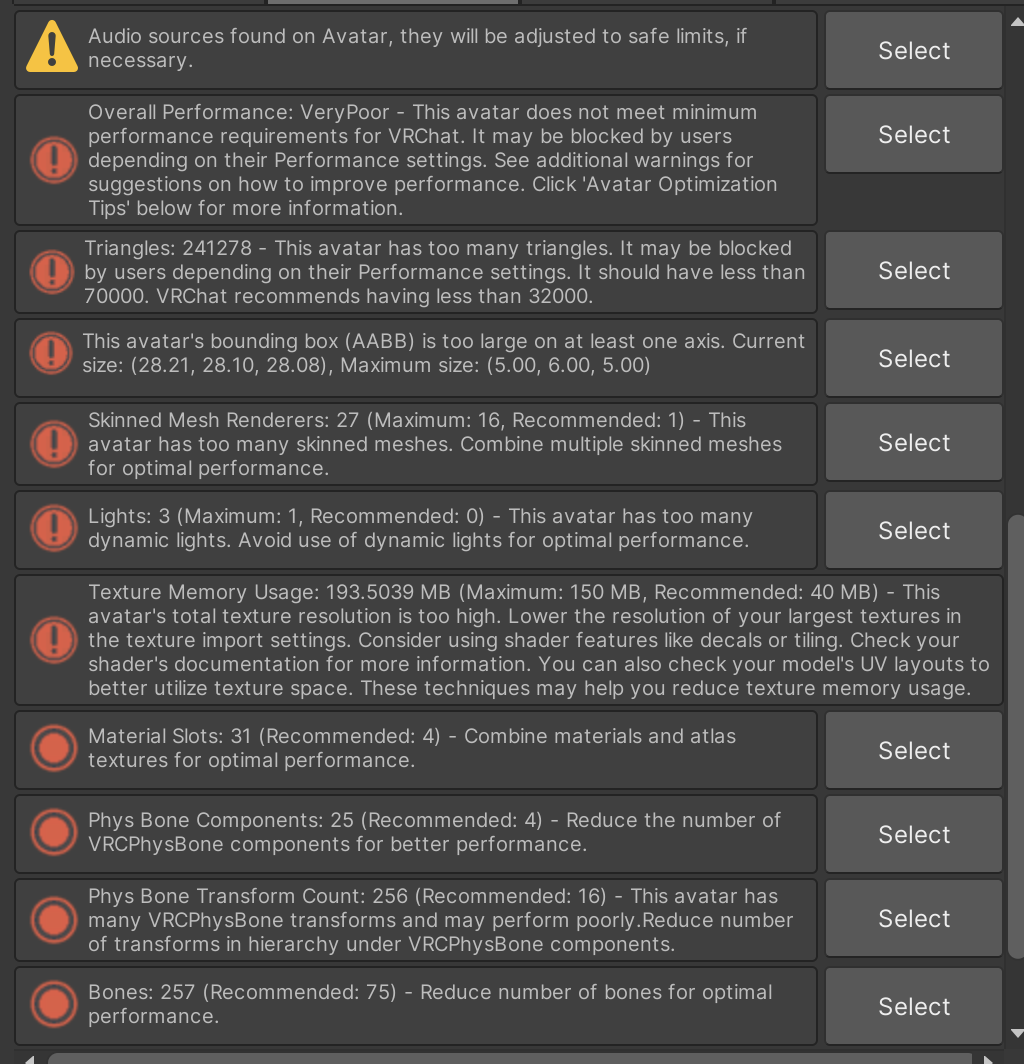
VRChat has a handful of major constraints, which you can read more about at Tupper's blog on building the best PC for VRChat, particularly because they have access to additional performance monitoring tools.
The easiest things to optimize are not necessarily the most impactful in terms of these constraints, but everything contributes.
partial glossary
- Animator Controllers - also known as Animators - a system by which animations are applied to an avatar. They normally have multiple layers which can be applied at the same time - for example, you might be able to change some lighting effects on your avatar at the same time as changing your hairstyle. More layers can put more pressure on the CPU.
- Blendshapes - also known as Shape Keys - deform the geometry they control based on the percentage at which they're applied (e.g. a
Bellyblendshape could make the avatar very thin at 0% and very chubby at 100%). Often controlled in the menu, increase VRAM usage since those deformations have to be stored. - Blueprint ID - part of the VRChat Avatar Descriptor component at the root of an avatar, this is how VRChat identifies which slot to upload an avatar to. If the fully featured version of your avatar and the optimized one share a Blueprint ID, the optimized one will overwrite!
- Component - a script attached to a Unity object that provides specific functionality, many coming from non-Unity sources. A PhysBone is a Component provided by the VRChat SDK, as one example.
- Geometry - the triangles, quads, and n-gons that make up each mesh.
- Mask - a 2D image that defines which part of the mesh an action should be taken on. Colours towards black are less affected (as are colours with alpha), colours towards full saturation are more affected. Masks may be simple and monochrome (black to white), or they may have individual red/green/blue components allowing for multiple actions to be controlled with the same mask.
- Mesh - the individual components of a model. For a typical avatar,
Bodymight be one mesh,Hairmight be another,Clothingcould be another. Multiple meshes might be stored in the same file. - Normal Maps - special textures that make other textures appear to have depth without adding additional geometry. (The specifics of how this works are out of scope for this article)
- Performance Rank - a rough guide by the VRChat SDK to current performance. Does not account for various things on the avatar, including shaders and any optimizations done during the upload process.
- Skinned Meshes - a mesh that has Blendshapes. Each skinned mesh requires VRChat to do additional processing compared to a mesh without blendshapes.
- VRAM - a specific type of fast memory used by GPUs. Every avatar loaded consumes some of it - the mesh and textures of your avatar and the avatars around it all take up some space.
the basics
general philosophy
Look at your avatar from a comfortable standing distance (about 1 metre/Unity unit away). This is a distance most will see you from most of the time - when it comes to things like texture optimization, if you can't see a difference at this distance, it probably doesn't matter. If it's slightly more blurry when you're snuggling in front of the mirror... you're snuggling, your focus shouldn't be on your textures at that moment.
the duplicate button is your friend
Cmd+D on Mac, Ctrl+D on Windows. It works even on some things that don't have a Duplicate option in the context menu.
If you're not sure about something before you clean it up, duplicate and you can always go back if you need to later.
Be careful with materials - if you're using a shader like Poiyomi, you'll need to make sure the material is unlocked before duplicating to avoid changes affecting both!
if you don't need it, delete it
If your avatar came with an outfit you really don't like, boob physics when you're only ever flat chested, hairstyles that you never use, get rid of them for free performance.
In some cases, this will be as simple as deleting something from Unity's hierarchy view. In others, it might mean hunting down where a specific animation is in your animation controller to fully get rid of a toggle.
packages to make your life easier
VRCFury
VRCFury provides a number of things for free which we suggest using even if there's no use for it in the rest of the project. Among other things, it can do the following:
- Adding the Blendshape Optimizer component means that if a blendshape is set in Unity but not controlled via an animation currently on the avatar, it will turn that into static geometry (e.g. if there was a Belly option on the menu that came with the avatar and you've deleted that in favour of your own menu, that would be set as static geometry and save VRAM).
- It will combine Animator Controller layers and parameters where it can, saving on CPU and the amount of network traffic.
- If a toggle/material/etc. is being added and you don't know where it's coming from - or if one of your physbones needs removing - it can generate a list of all Components used on any part of your avatar.
Thry's performance tools
Thry provides a VRAM evaluator - how much your avatar consumes. It's very useful for quick observations - and it's useful for finding textures only used in materials you've forgotten about.
Click on the ◕ icon next to each texture to see which material it's used on.
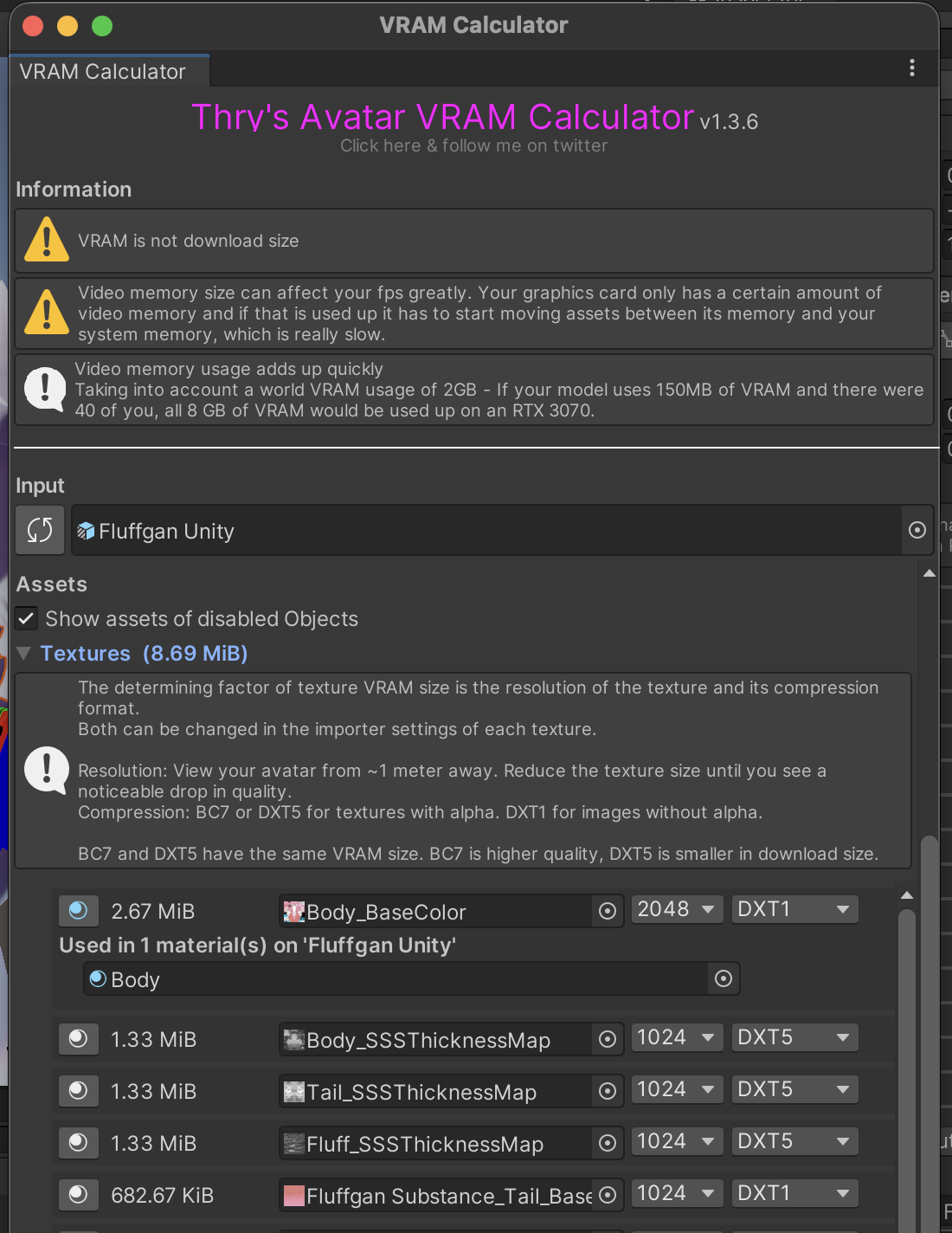
This is the easiest way to quickly bring VRAM usage right down.
You can normally compress masks much smaller than other textures, if you're not including small details with them. An easy way to test is to use them for an emission and see how blurry that is.
d4rk's avatar optimizer
d4rk's avatar optimizer is really good for reducing the number of skinned meshes without having to try and merge manually in Blender. It at least tries to merge things into a single mesh, though it doesn't always succeed at this.
other tools
Also heard good things about Modular Avatar and Avatar Optimizer (AAO), but I'm less familiar with them!
alternate versions
By duplicating an avatar and removing the Blueprint ID on the avatar's root, you can upload alternate versions of the same avatar.
This helps a lot with components and other systems that are particularly heavy. If you're a content creator, you might have a tool like VRCLens or studio lights for when you're filming. Real time lights and cameras on avatars tend to be particularly heavy on systems, so having those on a separate version that you only pull out when alone or in small instances is definitely preferred.
If you have two outfits that you like but that need separate meshes and will never be worn together - e.g. Jeans from one creator, Skirt from another and everything just clips through each other if both are worn at once - consider if an alternate upload might be the better choice. It loses a bit of convenience, but it will also save some VRAM for you and others.
This is especially applicable for large events like Furality - even if your Furality outfit is based on your regular mesh, it's still nice to minimize the amount of materials.
textures and materials
a word on shaders
Shaders are small little programs that run on the GPU. Each Material is assigned a shader, the shader is responsible for how the textures in that material are shown and what options are available.
Shaders have a unique problem when it comes to optimization, in that as far as I know, there is no indicator for if a shader has been configured in a way everyone's frames will drop just by looking at you. An Excellent avatar by VRChat's Performance Rank system can still piledrive your performance if a shader has been configured improperly.
As such, common sense has to apply here - look through the materials in use on your avatar and see what options are currently in use. A shader like Poiyomi has a lot of fancy options, some of which we've yet to find a practical use for.
Work on a duplicate of your material (remember - unlock before duplicating), go through the shader options - see what you can turn off, what's animated with a slider that you can make not-animated, what textures you can remove, etc.
vram and formats
Unity has a built in method for making the output textures lower resolution while leaving the full quality source in your project. The easiest way to do this is with [[#Thry's performance tools]], which also makes format recommendations.
a word on crunch compression
While we're looking at texture properties, crunch compression sounds like a good thing to turn on, but VRChat's advice is to not do that.
Crunch compression makes the download size of a texture smaller - at the cost that the receiving CPU has to do more work to decompress the texture. It still eventually consumes the same amount of VRAM it would have taken up without crunch compression after the image is re-expanded to full size. The download size is not the problem in most circumstances - if you're very close to the download size limit, something else is probably wrong.
decals
Decals are smaller textures overlaid on top of the other textures on a model. If you've played a game like GoldenEye 007 (N64) or Perfect Dark, the bullet holes in walls are a great example of decals in action.
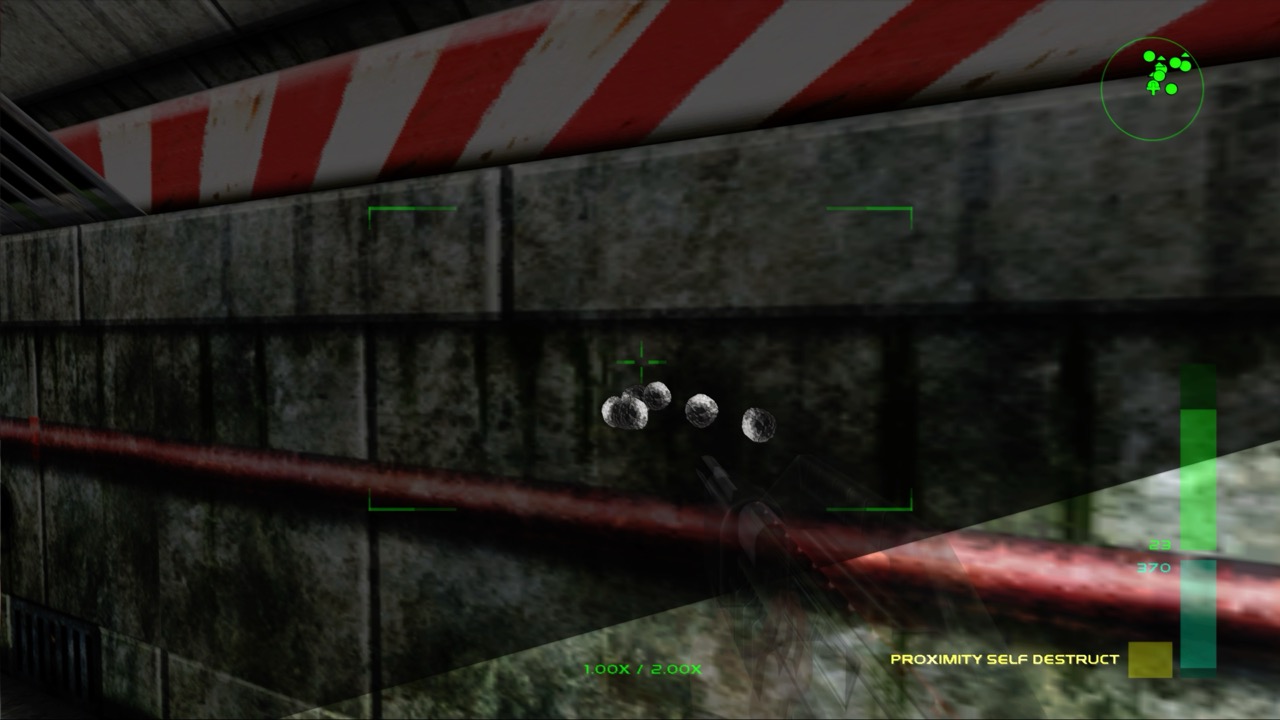
Decals allow for having specific areas of higher detail. For example, if you have a hoodie where the rest of it looks great at 1024x1024 but there's one specific high res logo that looks bad - you can split that off into a smaller decal and it'll still look crisp.
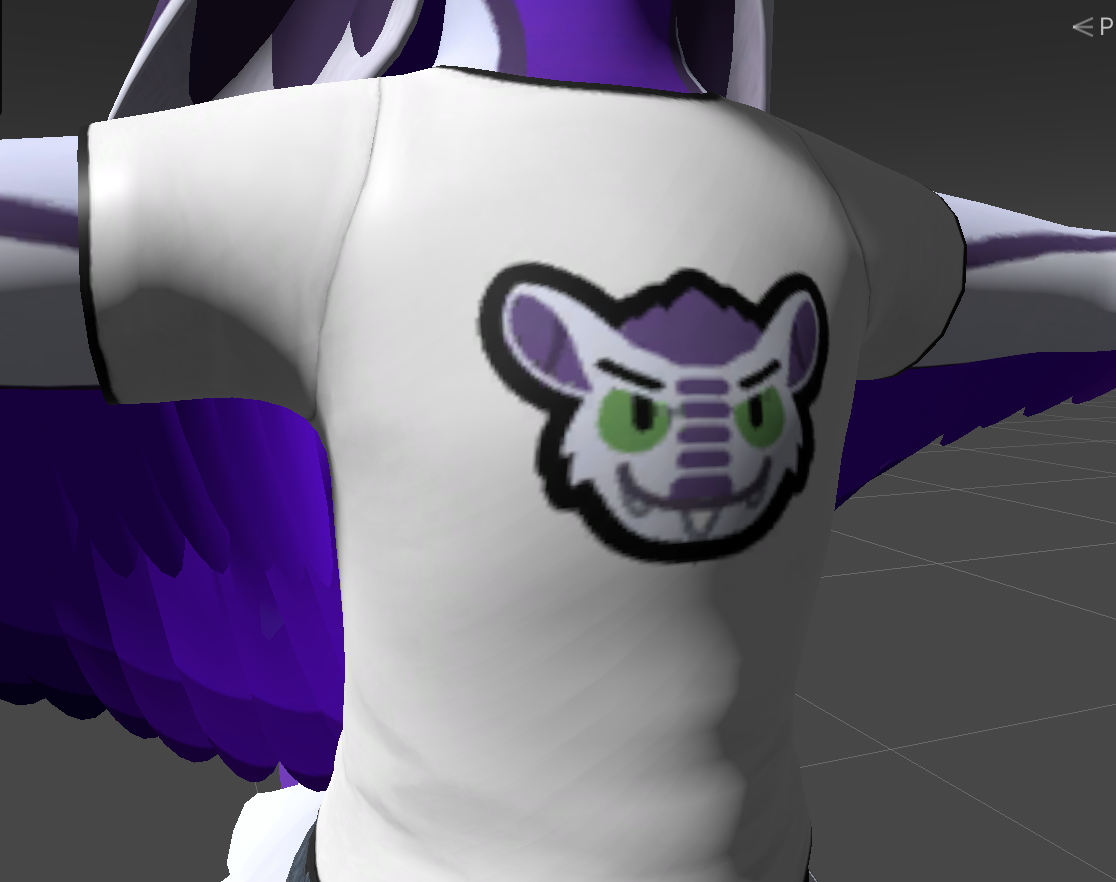
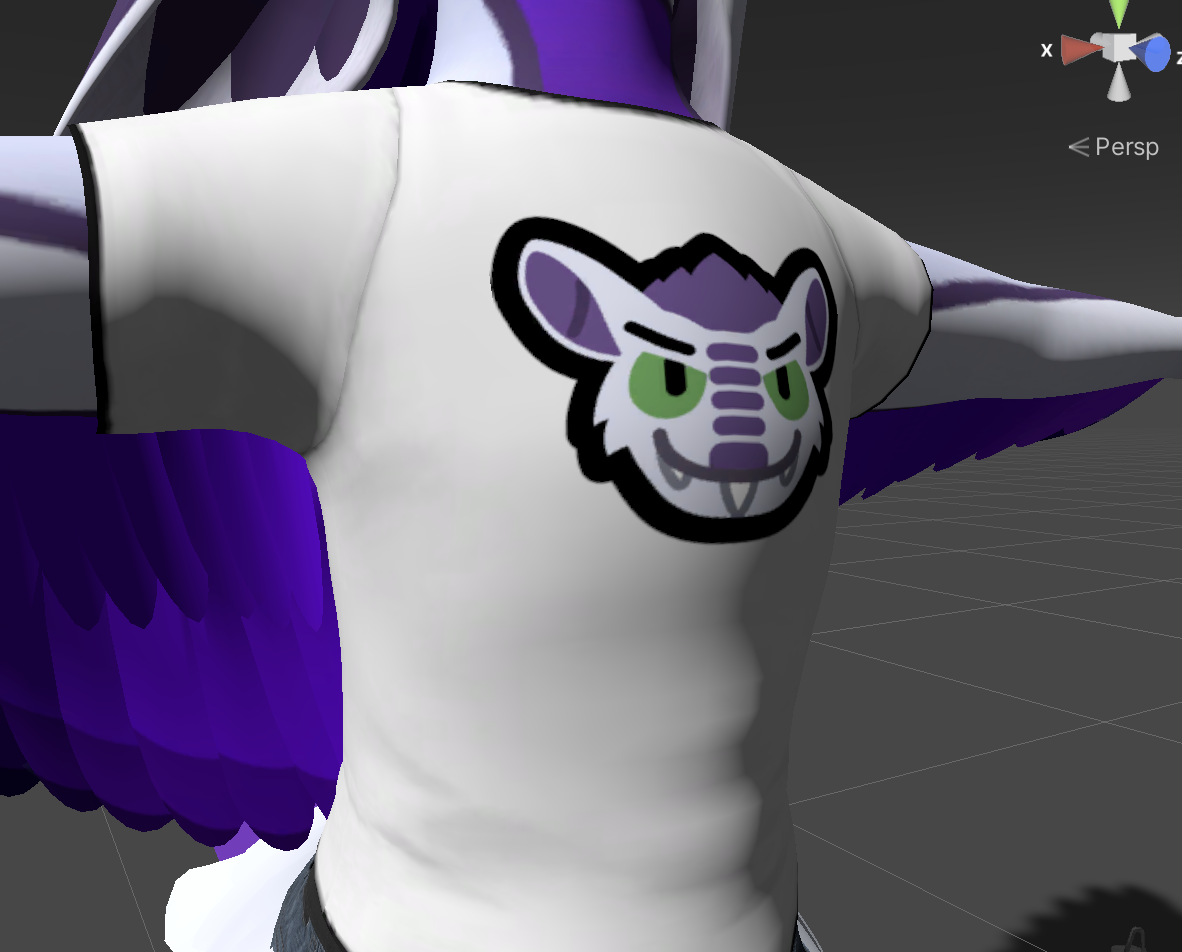
Decals are best for individual elements, as they have to be carefully positioned on the model (even above, you'll notice we didn't quite line up the decal the same as the simple texture). They're also not supported by all shaders, in which case you might need to try something else.
detail textures
Detail textures are used for repeated design elements, and are normally controlled with a mask. A decal just covers one little point, a detail texture can be repeated over everywhere that's masked.
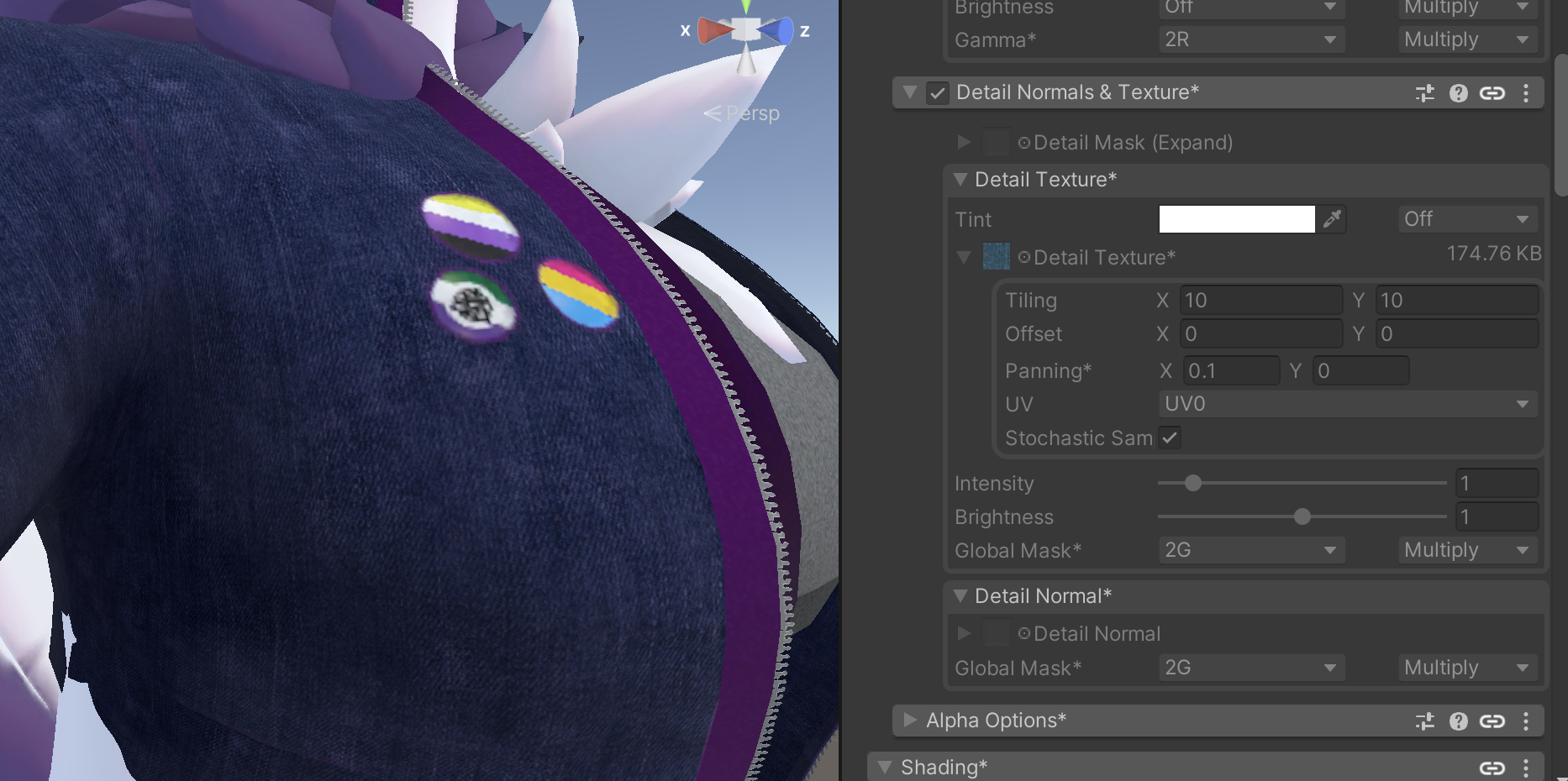
Again, this allows for specific areas to retain detail, and is most likely cleaner than just overlaying a texture on the relevant UVs. But similar restrictions apply as decals - they're not supported by all shaders, so for things like Furality, you still need a variant of the texture with the pattern included.
normal maps
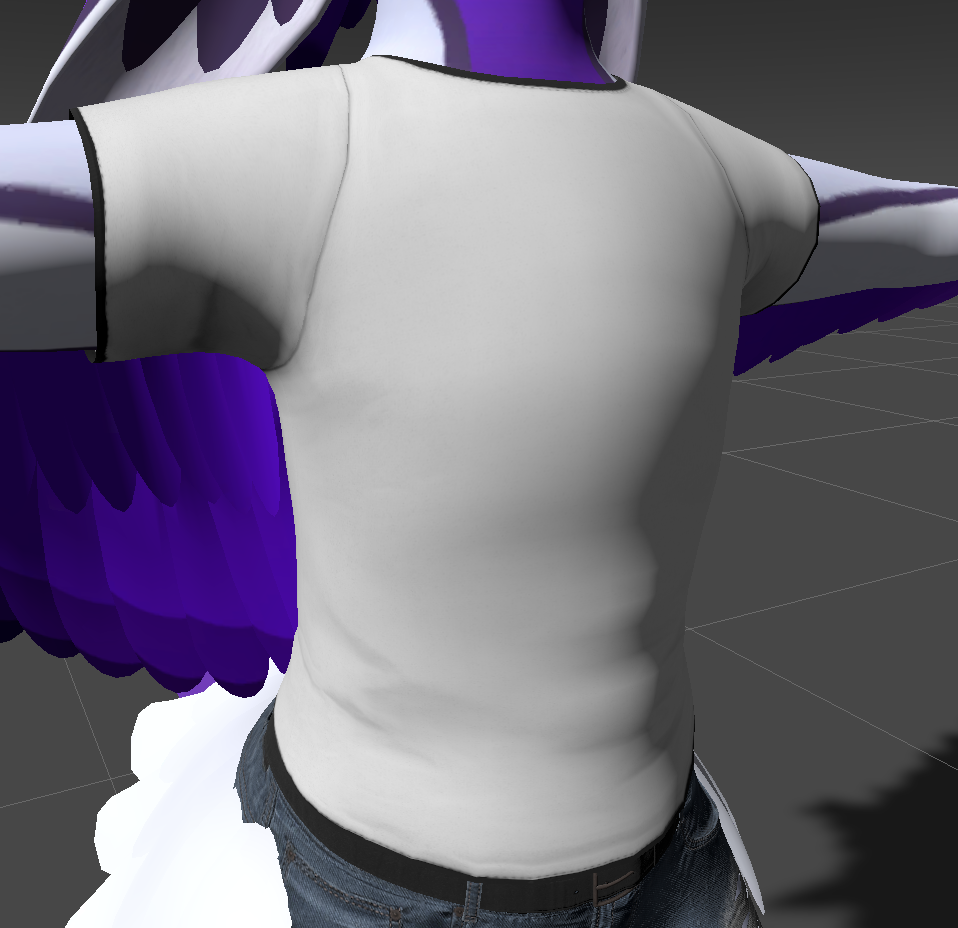
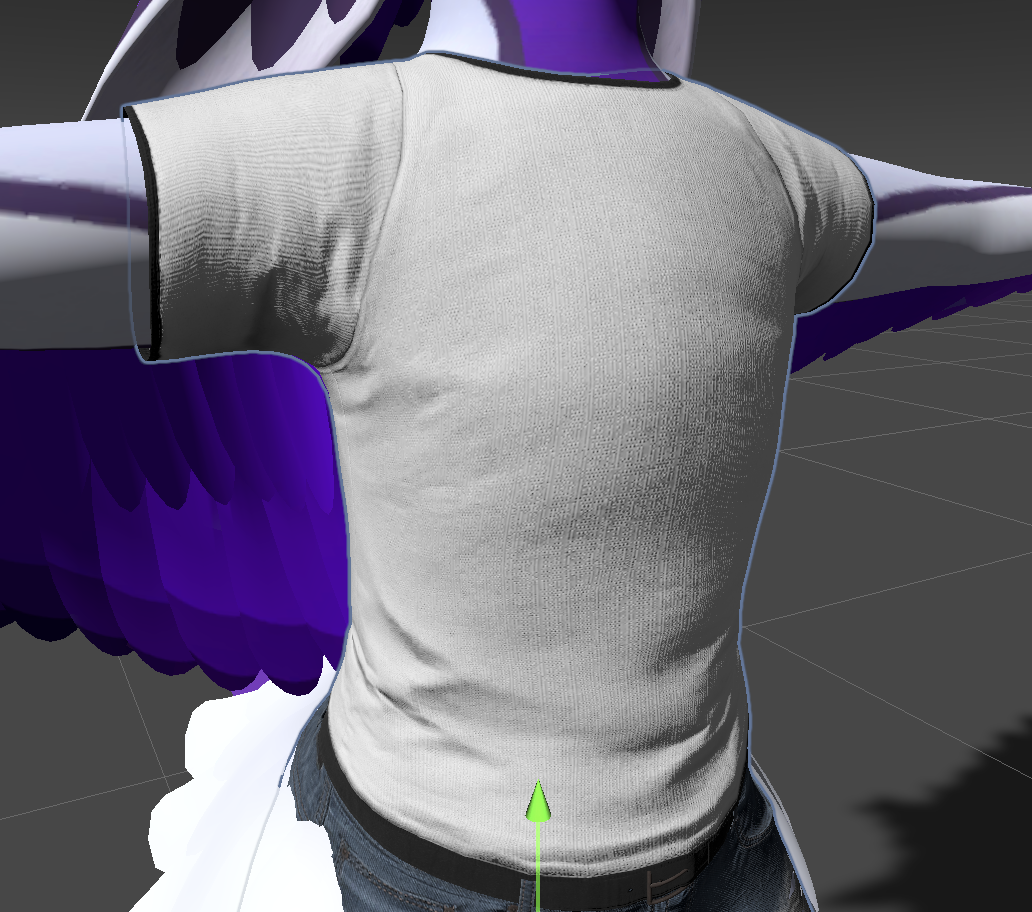
Normal maps are a double edged sword. They reduce the need for geometry by giving flat textures the appearance of depth - but they are also very large textures that are difficult to shrink down without the result looking like butt if it looks like anything at all.
detail normals
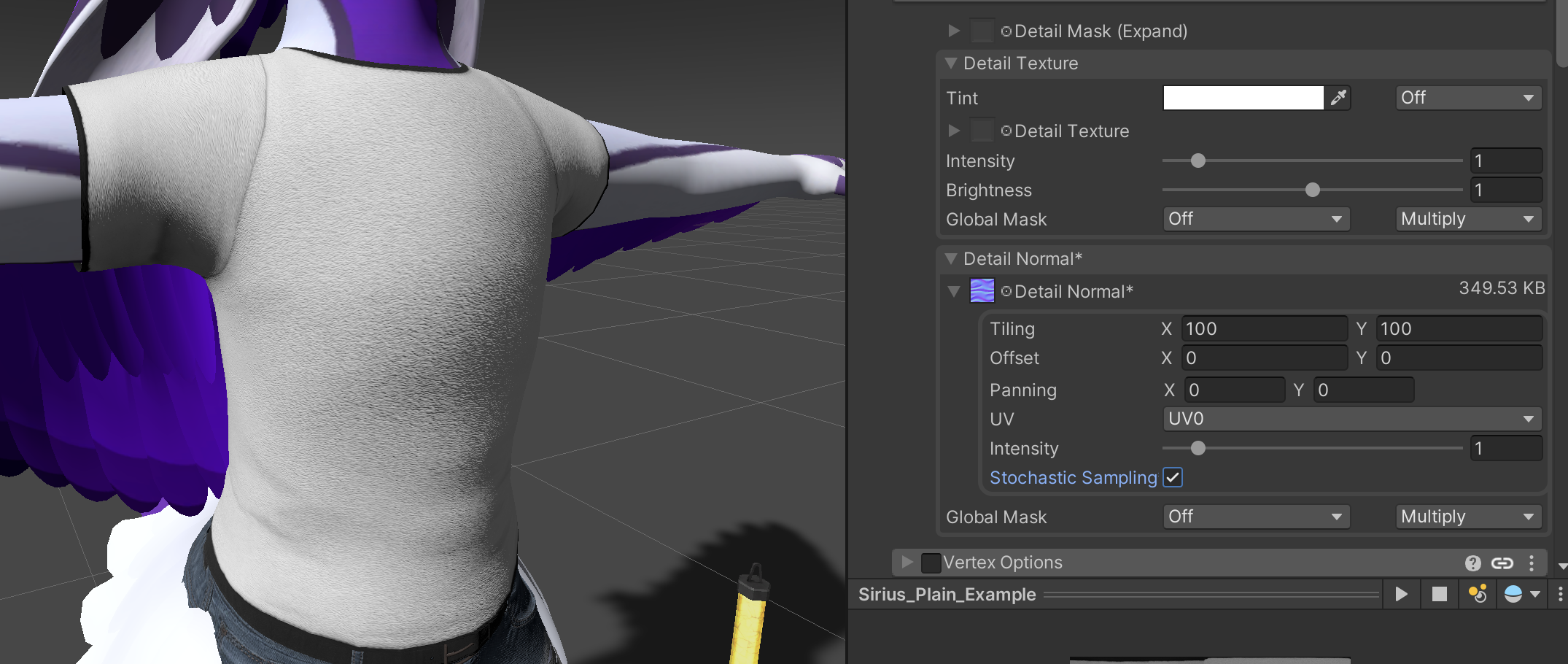
Detail normals are like detail textures, a smaller normal map repeated over an area defined in a mask. These are particularly great for clothing where the material doesn't change much over a larger area.
meshes
If you're over that 70k limit, options get more limited.
mesh deleter with texture
MeshDeleterWithTexture is a Unity add-on for deleting parts of your mesh by drawing on your UV map.
⚠️
warning
Make backups of your whole project before using this. While it does allow you to revert to a previous version if there's a problem - if you end up making a lot of smaller tweaks in sequence then it can be hard to get back to your original model, especially if Unity crashes.
The other thing is that you need to be careful about not deleting too much - look around from multiple angles, and check that there are no holes that aren't covered up by something else.
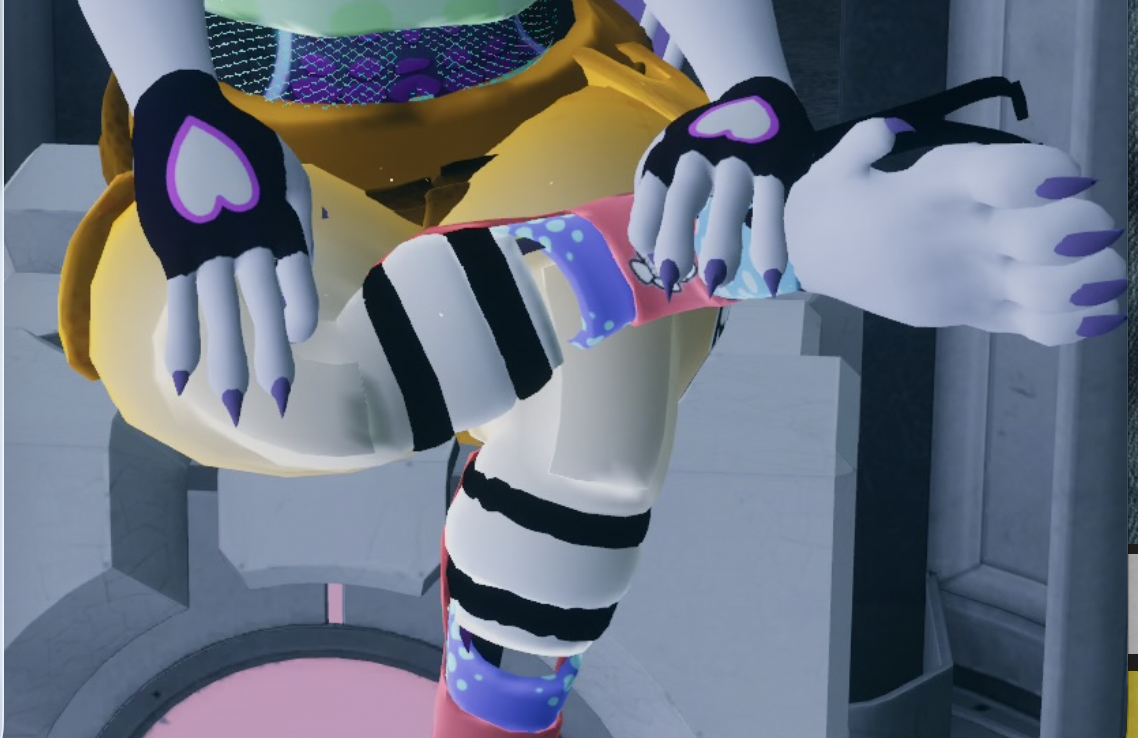
For (one of) my Furality outfits this year, I went with "what if Portal 2 had been released on the Ultravox Prism with special outfits" as a concept, including the Long Fall Boots. Only after taking the promo shots did I realize I'd been a bit too aggressive at removing parts of the legs:
polytool
Polytool is a paid Unity add-on that can decimate your avatar until it hits a polygon budget. It works on a copy so you can rerun the process at any time.
The results it gives are highly variable, but it can work well when just over the polygon limit or if you want to make a mobile version of your avatar for VRChat on Quest/Android/iOS.
⚠️
warning
Most tools here work together in some way, but Polytool does not always play nicely with others. As one example, let's say you have a JacketOpen animation that affects the Jacket skinned mesh renderer - and these are handled by a VRCFury component.
If VRCFury is used with d4rk's optimizer, when d4rk's combines skinned meshes together, VRCFury will rewrite the animation to target the new skinned mesh renderer (likely Body).
However, if VRCFury is used with Polytool, animations will not be rewritten automatically and may not work as a result.
Despite these limitations, Polytool is one of those things we're glad to have in the toolkit as a last ditch option when we really need to get down to Medium for a club.
lastly
More advanced stuff for when you've gone through everything else.
know when to fold 'em
There are some cases you're not going to be able to do much about. For example, Voxian makes really cool avatars with a variety of species affirming features for those that want them... but if you need all of those features then you can't exactly optimize the animator controller. Similarly, a lot of friends really like KillerKobold's vore system for themed meets, but that needs a light to work and in its default configuration comes with cameras as well.
Do what you can in other areas, at least., and again, remember alternate versions - you can have the fully featured ones when in smaller instances, and less featured ones at the club.
multiple uv maps
A model can have up to 4 UV maps that are recognized by Unity.
These UV maps do not have to match the primary UV map on the model.
long with a use case like the above, they can also be used for detailing - e.g. for something like a skateboard with a basic top and detailed artwork on the base, you could have a smaller texture for the main body and a UV map dedicated to the base to make the artwork still look crisp. (Similar to decals, but might be supported by some shaders that can't use decals)
uv tile discard
UV tile discard (or in Blender terms, UDIM) is an efficient way of turning off bits of a single mesh by making a single UV map into a 4 by 4 grid and assigning different parts of the mesh to each section of the grid. It is much cheaper than using individual meshes for each component or a blendshape that fully shrinks the component.
Particularly important for worlds - if you have multiple different types of rocks and trees spread around your environment, combining them into one mesh and using UV tile discard to choose which one to show causes the GPU to treat them as one singular object.
However it is not supported by all shaders. If applied to the primary UV map, it might reduce possible detail on parts of the texture because assuming the texture is still exported at 2048x2048, each individual component can only be 1/16 of the size. It can be very complicated to get working, and an alternative may be needed for mobile regardless.
texture atlasing and advanced decals
Unity allows for combining multiple textures into one and just displaying the most relevant one for that element.
This can allow for combining multiple material slots into one in something like CATS Blender plugin - but you can also turn one Shirt mesh into many shirts with a controllable hue shift property and possibly a decal or two.
that's all, folks!
That's all we've got for now, though we may update this in future with whatever we've inevitably missed. Hopefully there's been something in here you weren't previously aware of or want to look further into.
Again, you don't have to do all of these at the same time. But as the famous British supermarket slogan goes, "every little helps".
appendices
appendix a: credits
bases
outfits
worlds
other
- Decal artwork by Caius Nocturne
- Decal artwork features a yinglet, which are by Valsalia.
- Queer Villain Pride flag by DistressedEgg
- Denim texture by Rob Tutyel on PolyHaven
- Perfect Dark by Rare